
If you have ever noticed your iPhone slowing down in background updates or certain apps acting differently when your data runs low, you may have already encountered Low Data Mode. This feature is Apple’s smart way to help users conserve mobile data when needed.
In this guide, we’ll explain what Low Data Mode does, how it affects your iPhone’s behavior, when to use it, and how to make the most of it, especially when traveling with an eSIM.
What Low Data Mode Actually Does
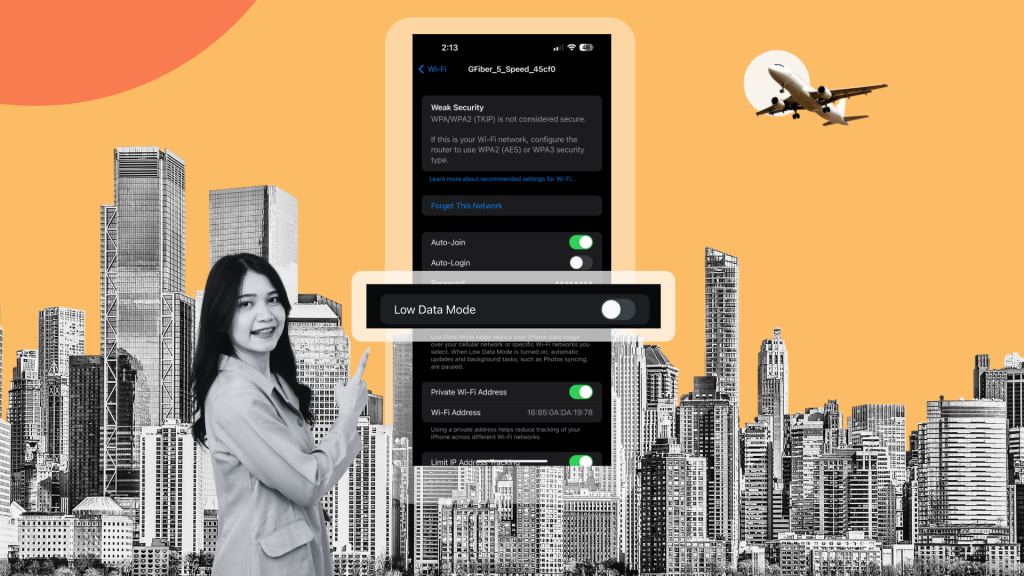
Low Data Mode is designed to reduce how much data your iPhone and apps use. Once enabled, it automatically changes system and app behavior to limit background data usage.
In simple terms, Low Data Mode tells your iPhone to “slow down” on certain internet-based activities to save data. Here’s what it affects:
• Automatic Updates: Your iPhone pauses automatic iOS updates and app downloads until you connect to Wi-Fi.
• Background App Refresh: Apps stop refreshing content in the background unless you open them.
• iCloud Syncing: Uploads and backups are paused to prevent large data transfers.
• Streaming Quality: Music and video apps lower their streaming quality to save bandwidth.
• FaceTime Quality: Video calls may appear slightly less sharp to reduce data use.
Essentially, your iPhone still works as usual but in a more data-conscious mode.
How Low Data Mode Changes Your iPhone’s Behavior?
1. App Store and iCloud
• App updates and large downloads wait until you have a stable Wi-Fi connection.
• iCloud backups, Photos syncing, and document updates are delayed.
2. Messages and Mail
• Images and videos in iMessage may take longer to send or download.
• Mail fetch frequency is reduced, so you might receive new emails with a delay.
3. Safari and Other Apps
• Websites may load fewer high-resolution images.
• Apps using location or map data (like Apple Maps) may refresh slower to conserve data.
4. FaceTime and Streaming
• FaceTime video calls use slightly lower resolution.
• YouTube, Netflix, and Spotify automatically lower quality unless manually overridden.
How to Turn Low Data Mode On or Off?
You can enable or disable Low Data Mode for mobile data, Wi-Fi, and hotspots. Here’s how to do it step by step:
For Mobile Data:
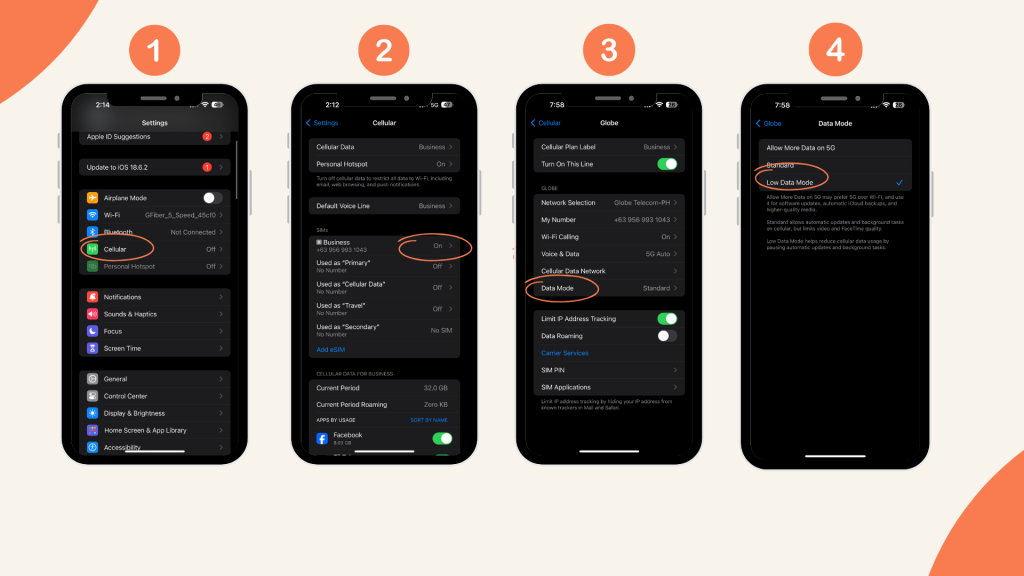
- Open Settings.
- Tap Cellular (or Mobile Data).
- Select Cellular Data Options.
- Tap Data Mode.
- Choose Low Data Mode to turn it on or Standard to turn it off.
For Wi-Fi Networks:
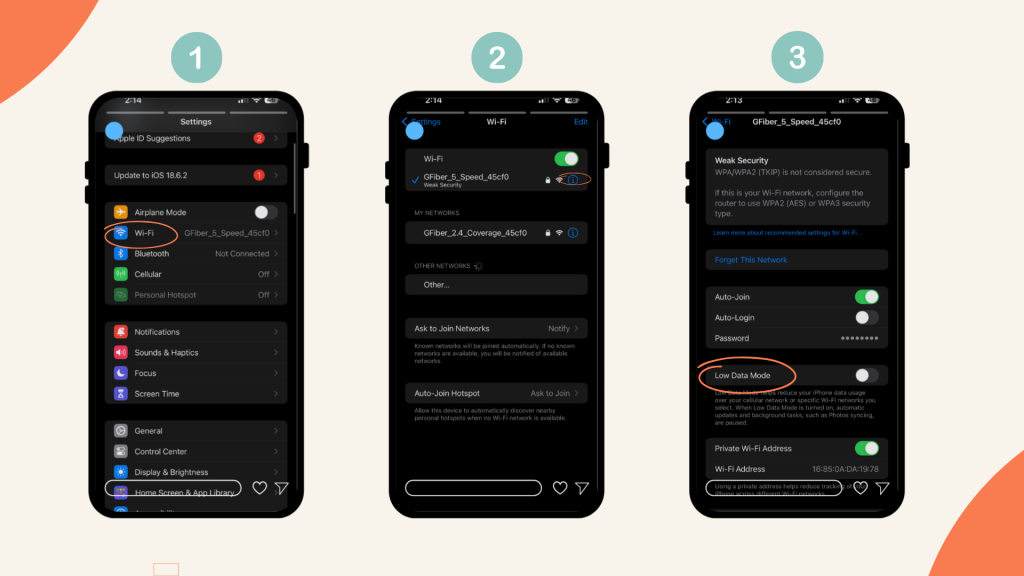
- Go to Settings → Wi-Fi
- Tap the (i) icon next to the connected Wi-Fi network.
- Toggle Low Data Mode on or off.
For Personal Hotspot:
When you share your hotspot, Low Data Mode may turn on automatically to reduce data consumption. You can manage it under Settings → Cellular → Personal Hotspot.
When You Should (And Shouldn’t) Use Low Data Mode
Like most iPhone features, Low Data Mode shines in certain situations but may be inconvenient in others. Here’s a breakdown to help you decide when to use it.
When You Should Use It
• You’re on a limited data plan. It helps stretch your data until your next billing cycle without sacrificing essential features.
• You’re traveling abroad. When using roaming or an eSIM, every megabyte counts. Low Data Mode ensures you stay connected without burning through data quickly.
• You’re in a low-signal area. Reducing background activity helps apps load faster and makes your connection more stable.
• You’re conserving battery. Fewer background updates mean your phone uses less power.
• You’re sharing data via hotspot. Enabling Low Data Mode on your hotspot ensures connected devices don’t consume too much data.
When You Shouldn't Use It
• You need real-time updates. Apps like Slack, Gmail, or stock trading platforms may delay notifications.
• You’re performing backups or uploads. iCloud, Google Drive, or Dropbox syncing will pause.
• You’re on unlimited Wi-Fi. There’s no reason to restrict data on a home or office connection.
• You’re streaming in HD. If you want the best video or music quality, keep Low Data Mode off.
Think of Low Data Mode as a temporary switch for times when you need to control data use, not something you should keep on permanently.
Combine Low Data Mode with an eSIM for Smarter Travel
Travelers, digital nomads, and remote workers will love this part. Combining Low Data Mode with an eSIM gives you the perfect balance between connectivity and cost savings.
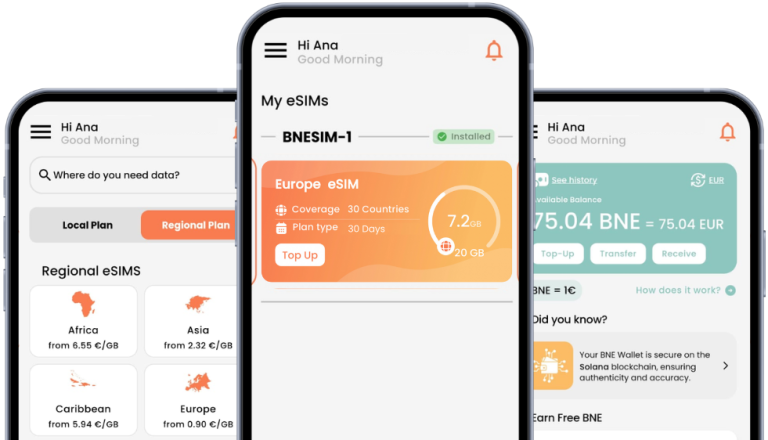
With a BNESIM eSIM, you can:
• Enjoy seamless connectivity without overspending.
• Limit background data use during your trip.
• Extend your plan’s data allowance for longer stays.
For example, if you’re on a week-long trip to Spain, you can buy a BNESIM eSIM data plan for that country, enable Low Data Mode, and confidently explore without worrying about background apps eating into your gigabytes.
This combination makes traveling smarter, cheaper, and stress-free — all while keeping you online for navigation, communication, and entertainment.
FAQs
Will Low Data Mode affect FaceTime or calls?
Yes, FaceTime video quality will adjust to a lower resolution to save data. However, regular phone calls or FaceTime Audio won’t be affected. You can still communicate clearly, just with slightly reduced video sharpness.
Why did Low Data Mode turn on for my hotspot even though I didn’t enable it?
iOS sometimes activates Low Data Mode automatically for personal hotspots to prevent devices connected to your phone (like laptops or tablets) from using too much of your data plan.
Can I rely on Low Data Mode instead of buying extra data?
Not entirely. While it helps reduce consumption, Low Data Mode can’t stop apps from using data completely. If you stream videos or browse often, you may still need additional data or consider getting a BNESIM eSIM for affordable local data options.
Will Low Data Mode stop automatic backups or updates on my iPhone?
Yes. Low Data Mode pauses iCloud backups, app updates, and even Photos syncing until you disable it. This prevents large uploads from using your limited data.
Can I use Low Data Mode only for Wi-Fi or mobile data?
Yes. You can enable it separately for Wi-Fi and cellular networks, giving you full control depending on the situation.
Wrap Up
Now that you know what Low Data Mode is and how it functions, you can start using it to manage your iPhone data more wisely. It’s a simple but powerful feature that keeps you connected without draining your data plan or battery life.
When combined with a BNESIM eSIM, you get the best of both worlds — smart data usage and reliable, affordable connectivity across the globe.
Whether you’re traveling, working remotely, or simply trying to stay within your data limit, Low Data Mode and BNESIM make it easier to stay online without overspending.

Kai Claide
A content creator with a love for the outdoors and pictures. A true beach person at heart, enjoys sunny coastlines, sipping matcha, and making the most out of every adventure. Curious and is always up for something fun.


 English
  Italiano